
1One list for everything that is sent
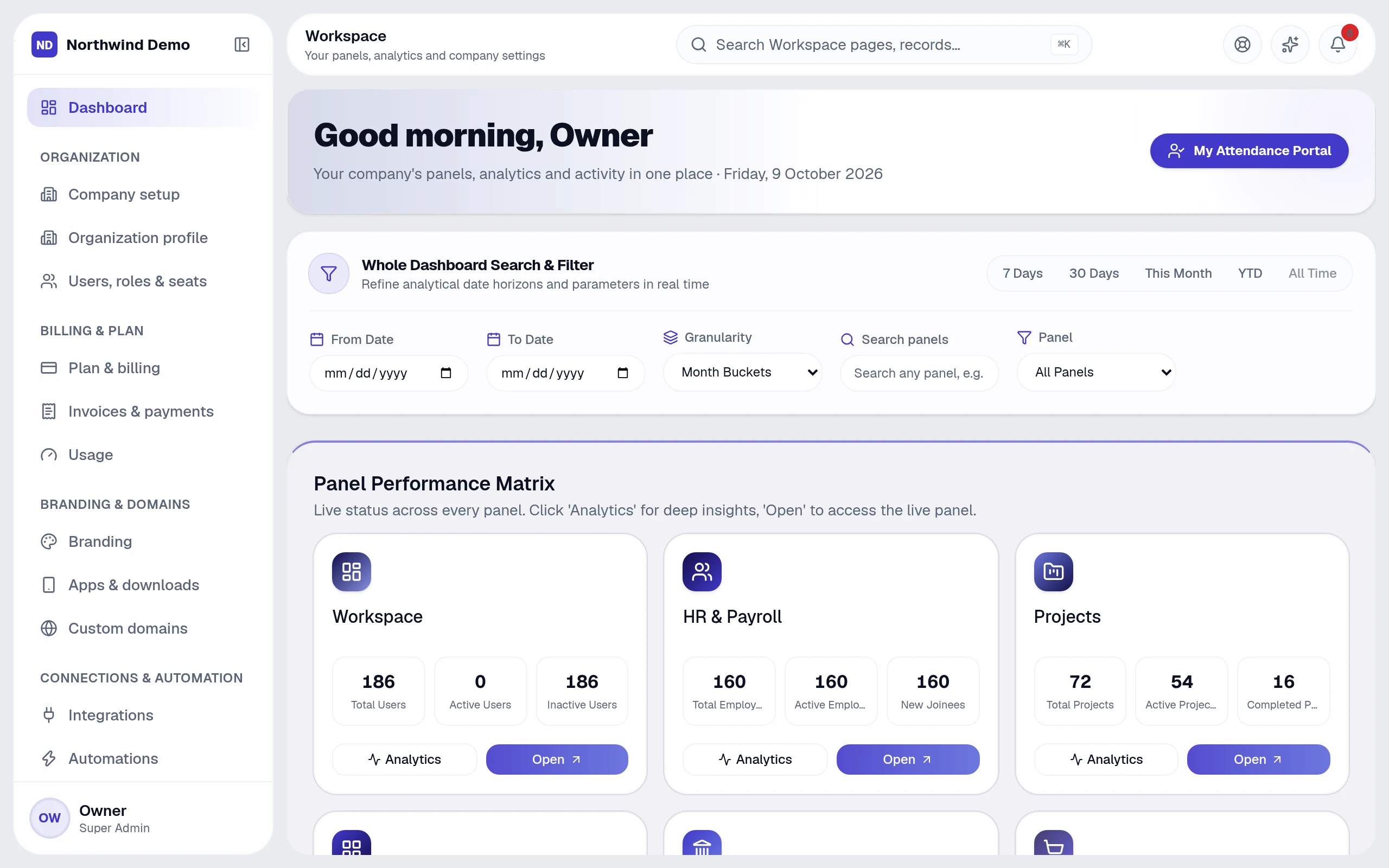
Workspace → Notification center lists every email, in-app notification and push notification your workspace sends, grouped by product. Nothing is hidden: if the system sends it, it is on this list, with who receives it and when it is sent.
2Turn channels on or off
- Each notification has its own switches for email, in-app and push
- Security and billing emails cannot be switched off, so important messages always arrive
- If SelfRun has turned a notification off for every business, the screen says so
3Change the wording
Open any notification to see its subject and message exactly as they are sent, already filled in. Edit the text, use the values shown in curly braces such as {name} or {amount} to insert details that change each time, and preview the result before saving. Reset puts the original wording back.
4Send your own announcements
- Choose New announcement to open the form in a side panel
- Write the title and message, and choose email, in-app, push or any mix
- Send to everyone, to a role, or to specific people you pick from the list
- Send now, or schedule a date and time; scheduled announcements can be edited or cancelled until they go out
- The Custom tab lists every announcement you created, with its status
5See what was delivered
The activity view lists recent notifications with channel, recipient and outcome, so you can answer “did they get it?” without asking anyone.
Related guides