
Accounting, invoicing and cash flow you can trust
42
features
4
automations out of the box
1 panel
replaces accounting tools
Every plan
free forever included
Overview
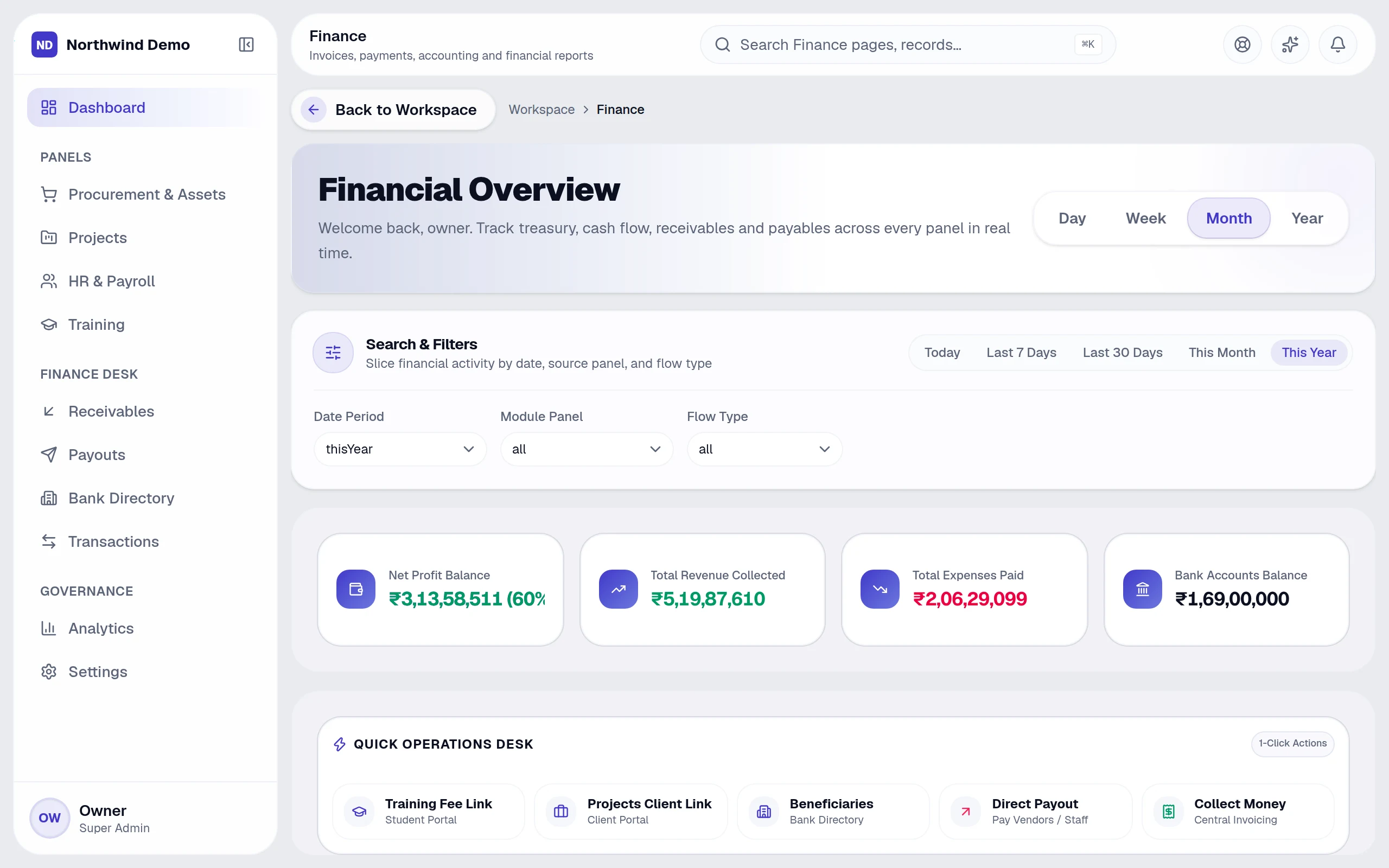
Finance in one page.
Money in, money out, the bank, the ledger and the reports — all fed by the other panels, so the books are never re-typed.
“The result
Books that close faster, fewer payment delays and reports you can hand to your accountant as they are.
Key capabilities
- Invoices, credit notes, bills and debit notes
- Receipts, payment links and payouts
- Bank and cash accounts with reconciliation
- Chart of accounts, general ledger and trial balance
- Profit & loss, balance sheet, cash flow and tax reports
- Approvals, advances, expenses and numbering rules
What it covers
Replaces
Accounting & invoicing software
Best for
Finance managers · Accountants · Collections & receivables · Auditors
From start to finish
- 1Invoice
- 2Collect
- 3Pay out
- 4Reconcile & report
Why teams use it
What Finance gives you that separate tools don't.
It replaces accounting & invoicing software — as one panel inside the same platform, on the same login and the same data.
Books that close faster, from live transactions
Customers pay online straight from the invoice
Salary, vendor and project money posts itself — no re-entry
Reports your accountant can use as they are
Who uses it
One panel, the right view for everyone.
People see and do only what their role allows, so each person gets a screen that fits their job.
Finance managers
Approve payouts, watch cash flow and close periods.
Accountants
Post, reconcile and report from the ledger.
Collections & receivables
Send invoices and payment links and chase what is overdue.
Auditors
Read-only access to reports and the audit trail.
How it works
From start to finish, step by step.
Money in, money out, the bank, the ledger and the reports — all fed by the other panels, so the books are never re-typed.
- 1
Step 01
Invoice
Create an invoice, send it with a payment link and track it until it is paid.
- 2
Step 02
Collect
Customers pay online; receipts and the ledger update on their own.
- 3
Step 03
Pay out
Vendor bills, expenses, advances and salaries go through approvals before payout.
- 4
Step 04
Reconcile & report
Match bank and cash, then read profit & loss, balance sheet, cash flow and tax reports.
42 features
Every Finance feature, explained.
Grouped the way the panel's own menu groups them. All of it is included in every plan.
Money in
7 featuresReceivables
Everything customers owe you
Invoices
Create, send and track invoices
Credit notes
Adjust invoices cleanly
Receipts
Record and issue receipts
Payment links
Get paid online from any invoice
Refunds
Handle refunds with a trail
Customers
Customer records with history
Money out
7 featuresPayables
Everything you owe
Bills
Capture and approve vendor bills
Debit notes
Adjust bills cleanly
Payouts
Pay vendors and staff from one place
Vendors & bank directory
Beneficiaries and bank details
Advances & employee expenses
Claims with approvals
Salary payments & payroll runs
Posted from HR automatically
Banking & cash
6 featuresBank accounts
Every account with its transactions
Cash accounts
Petty cash and cash on hand
Transfers
Move money between accounts
Bank reconciliation
Match statements to the books
Cash reconciliation
Count and reconcile cash
Transactions
Every money movement, with approvals
Books & reports
9 featuresGeneral ledger
Every posting, searchable
Trial balance
Always in balance
Profit & loss
Revenue and expenses
Balance sheet
Assets, liabilities and equity
Cash flow
Where the cash came from and went
Tax reports
Ready for your accountant
Budget vs actual
Spot overspend early
Project profitability
Margin by project
Revenue & expense reports
Trends and breakdowns
Control & settings
9 featuresApprovals
Route money movements for sign-off
Approval rules
Thresholds and approvers
Chart of accounts
Your own account structure
Fiscal periods
Open and close periods
Numbering
Document number series
Tax configuration
GST and tax rates
Exchange rates
Multi-currency support
Payment methods
Accepted ways to pay
Asset expenses
Link spending to company assets
Connected panels
4 featuresProcurement
Vendor invoices and purchase payments
Projects
Milestone billing and project costs
HR & payroll
Salary payouts posted automatically
Training
Student fees and receipts
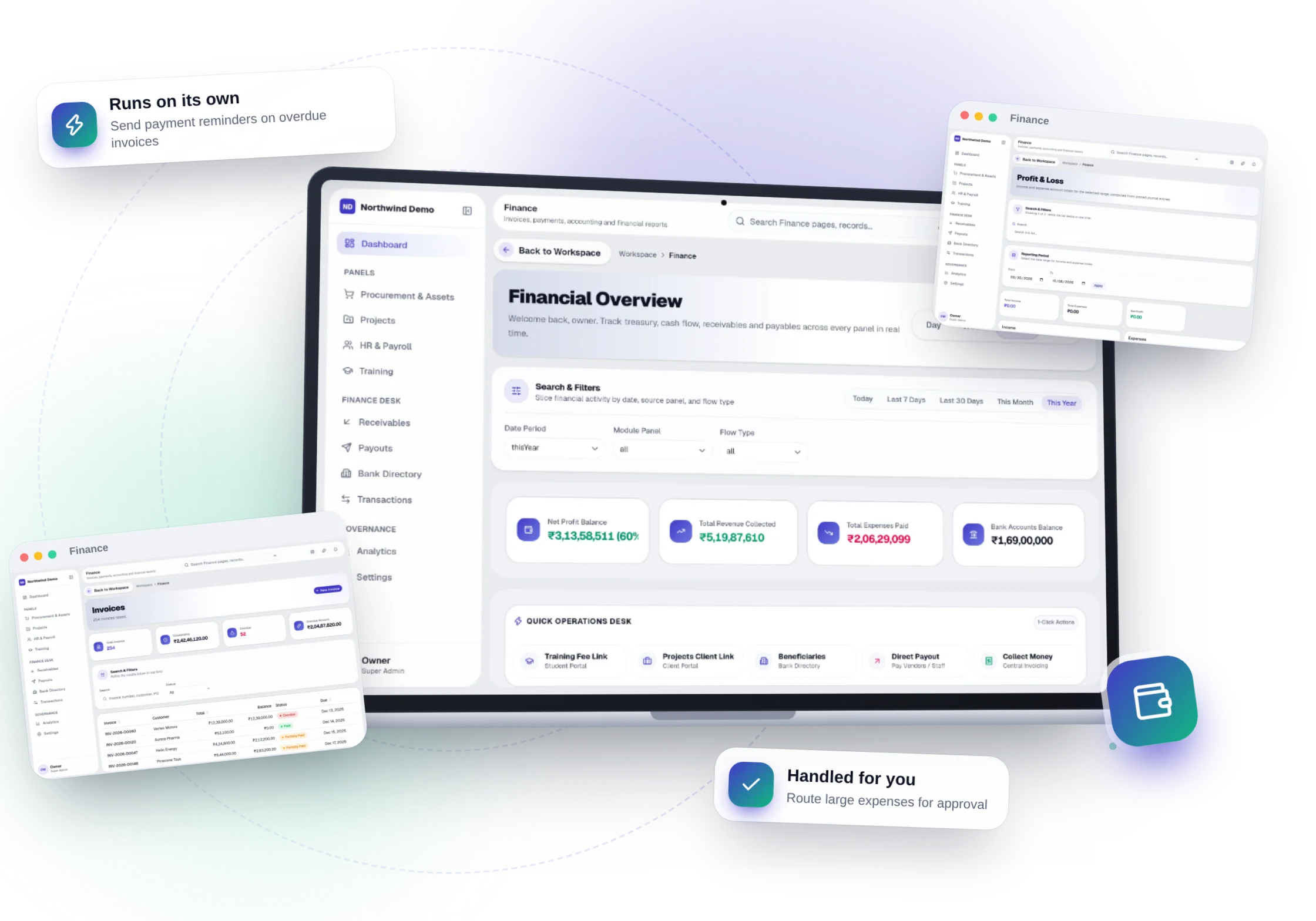
Runs automatically
Finance works while you don't.
These happen on their own — notifications, reminders and hand-offs to other panels. Every run is logged, and you can pause any workflow.
Send payment reminders on overdue invoices
Route large expenses for approval
Post salary and vendor payments from HR and Procurement
Notify finance when a payment link is paid
Build your own in Workspace → Automations.
Connected panels
Nothing is re-typed. Everything is connected.
Finance shares one database with every other panel, so work moves between teams on its own.
Ask AI
Ask Finance anything.
Plain-language questions, answered from your real records — with the working shown.
- “Which invoices are more than 30 days overdue?”
- “What was our net profit this month?”
- “Which customers owe us the most?”
Screens
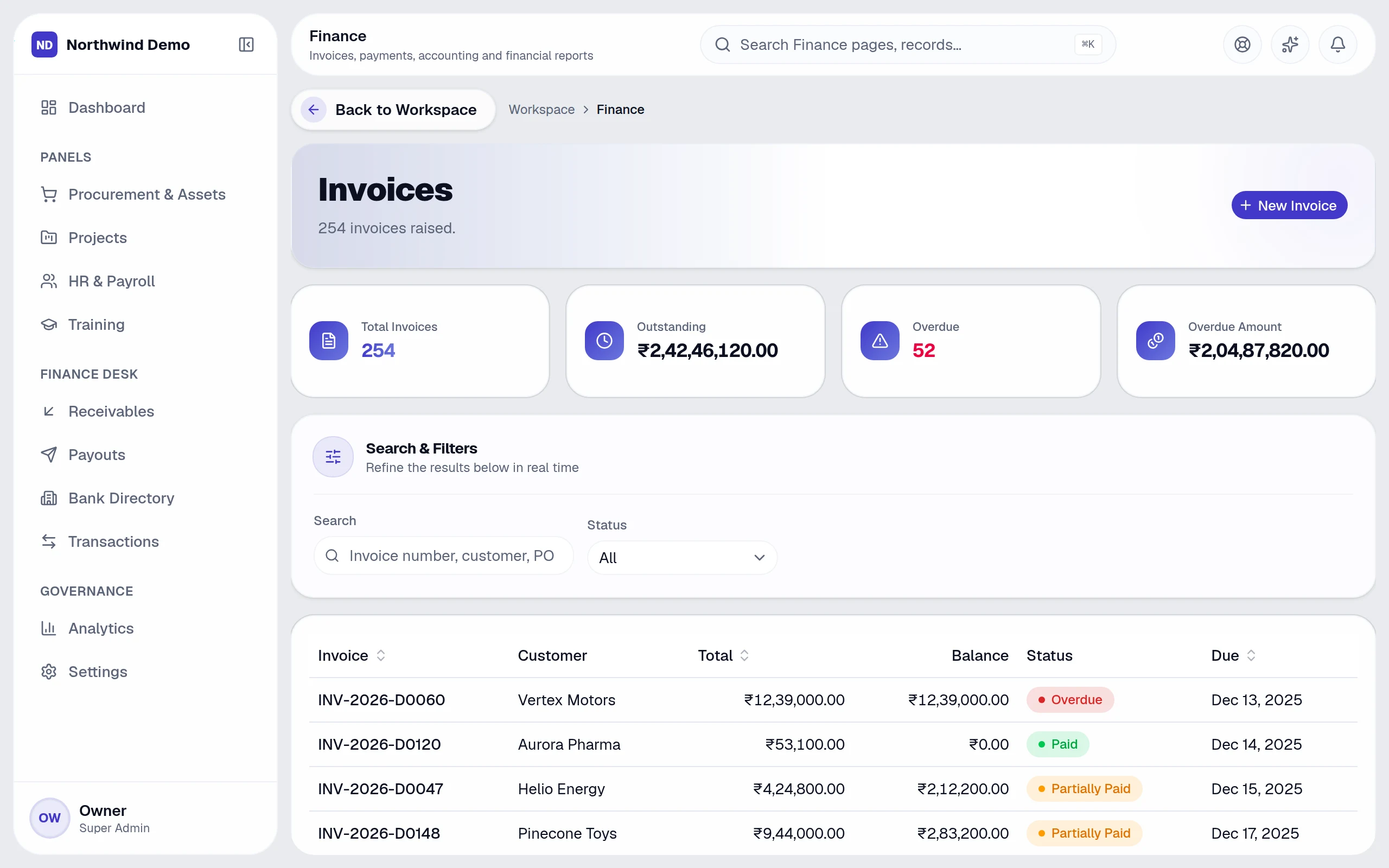
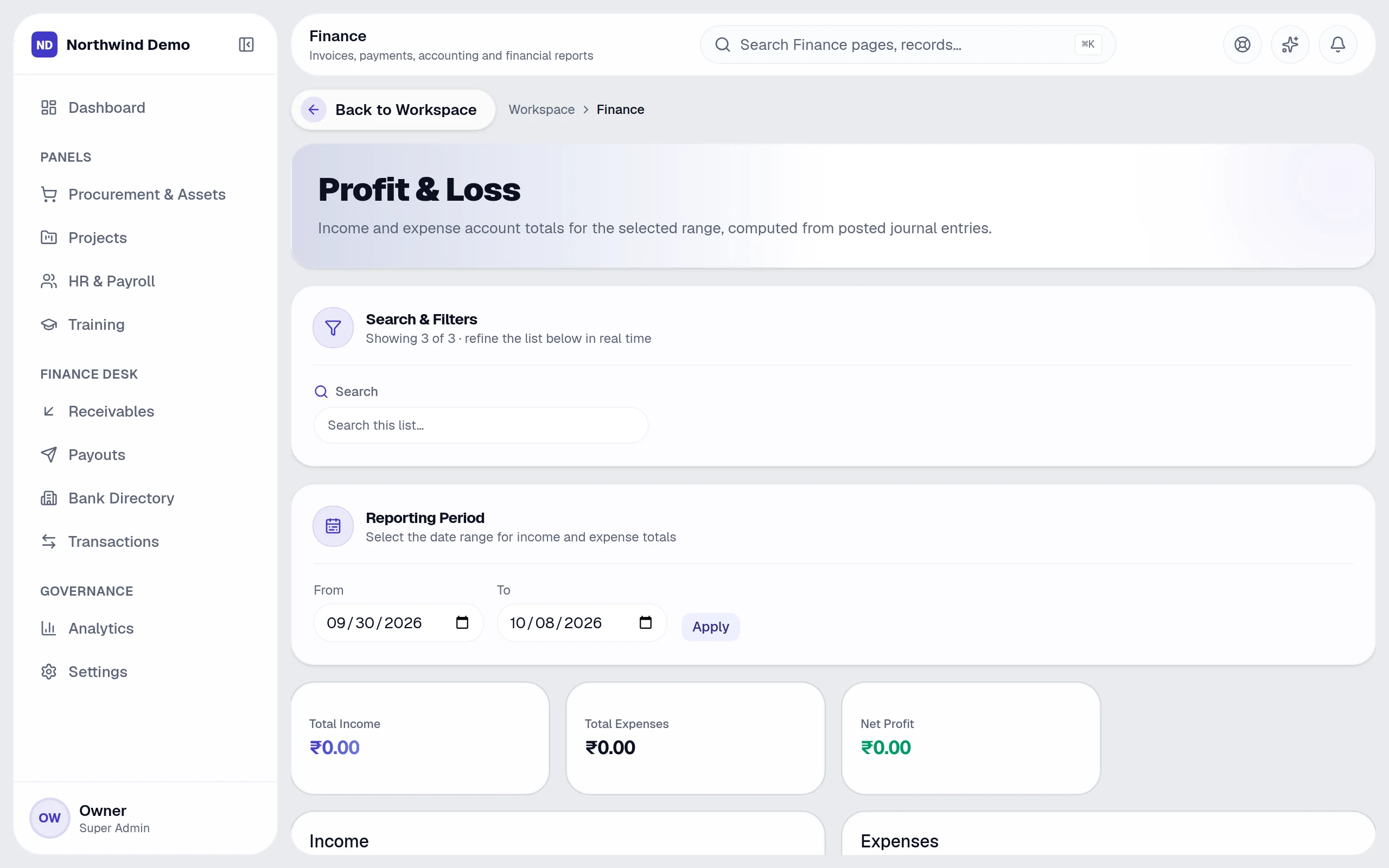
Finance, exactly as your team sees it.
Real, full-resolution screens of the live product, captured in a demo workspace with sample data.

Run Finance — and every other panel — free.
Every panel and every feature is included in every plan, starting free forever for one person.
FAQs
Questions, answered.
Still deciding? These are the things people ask before they start.
What can I ask the AI?
Anything about your business data in plain language — for example overdue invoices, leads by source, who is on leave or which projects are late. It answers with text, a table or a chart and shows how it calculated the answer.
Can the AI change my data?
No. Questions are answered with read-only queries, and the AI only uses data the person asking is allowed to see.
Do I need to write code to automate things?
No. Workflows are built from a trigger, optional conditions and actions on a settings screen, starting from ready-made templates.
Can I build an AI assistant on my own documents?
Yes. Create a bot with your instructions and knowledge files, choose who can use it, and track its usage and cost.
Can AI answer my website visitors?
Yes. The website chatbot answers from a knowledge base you control, and Conversation AI adds voice. Every conversation is logged for review.