
In simple words
Content SEO is part of SEO. Scores per page. This guide takes you through it in 7 short steps.
Where it fits in your work — Audit. Crawl the site and get prioritised technical, on-page and content issues.
Before you start
- You need to be signed in to your company's workspace. SEO appears in the Workspace dashboard and in the left menu when your role includes it.
- What you can see and change depends on your role. If a menu item or button is missing, ask your workspace owner to give your role access in Workspace → Users.
- Content SEO belongs to Audit in SEO. Scores per page.
Step by step
- 1
Step 1
Open SEO
Sign in and open the SEO panel from your Workspace dashboard (or sign in to it directly). You see only what your role allows.
- 2
Step 2
Open “Content SEO”
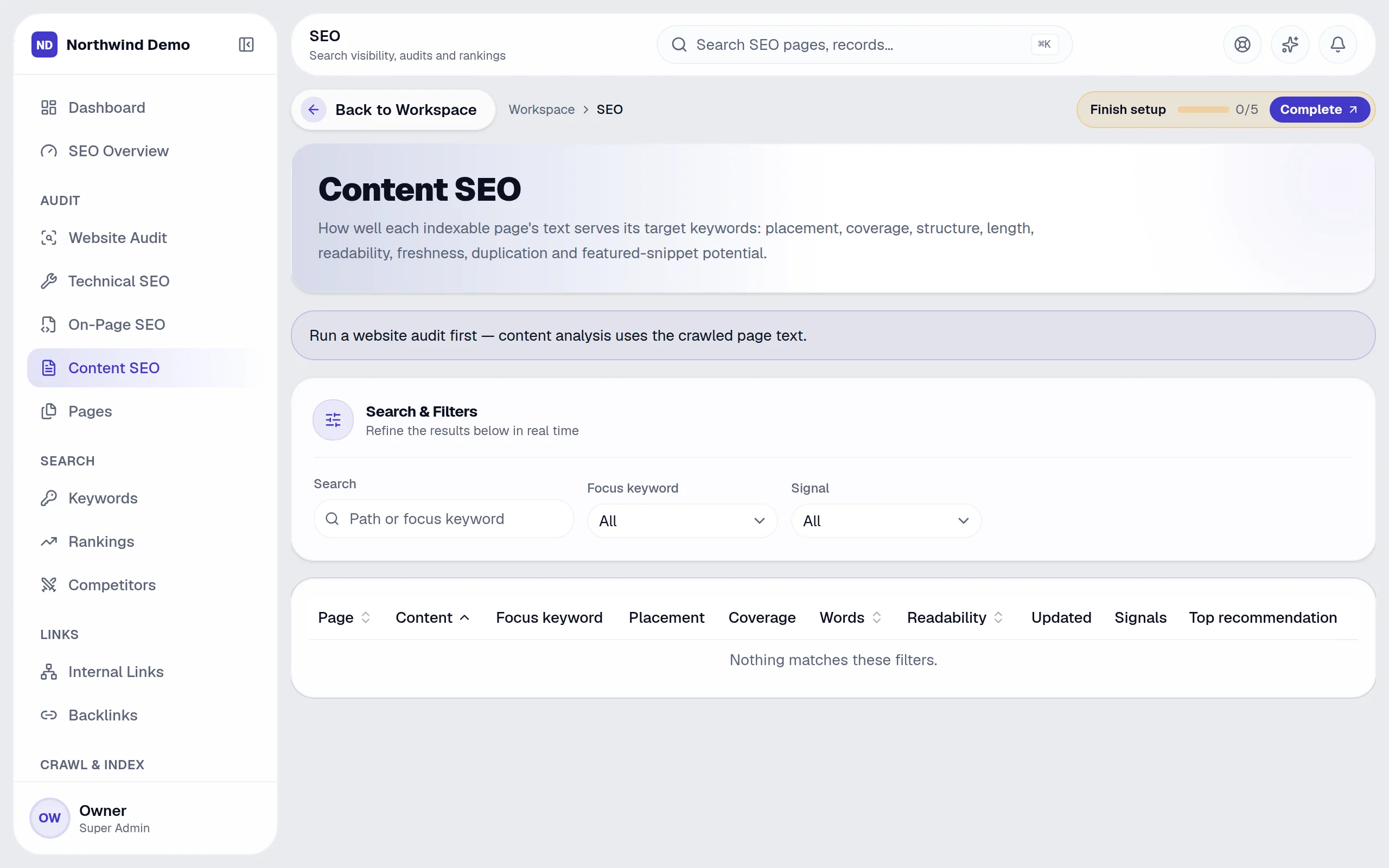
In the left menu, click “Content SEO”. The “Content SEO” screen opens.
- 3
Step 3
Find what you need
Type in the search box (“Path or focus keyword”) to find a record quickly.
- 4
Step 4
Narrow the list
Use these filters to see only what you want:
- Search
- Focus keyword
- Signal
- 5
Step 5
Read the list
Each row shows:
- Page
- Content
- Focus keyword
- Placement
- Coverage
- Words
- Readability
- Updated
- Signals
- Top recommendation
- 6
Step 6
Other actions on this screen
You will also see these buttons:
- Page
- Content
- Words
- Readability
- 7
Step 7
Done
Scores per page.
Tips
- You can use more than one filter together (Focus keyword, Signal) to see exactly the records you want.
- The search box accepts: Path or focus keyword. Start typing and the list narrows down.
- Click a row to open that record and see all of its details.
- If you make a mistake, open the record again and correct it. Changes are recorded against your name so your team can see who did what.
Quick recap
Open SEO → Open “Content SEO” → Find what you need → Narrow the list → Read the list → Other actions on this screen → Done
What it connects to
Website
The sitemap, robots and schema drive the live site.
Social Media
Content that supports your search presence.
Workspace
Alerts when rankings or indexing change.
What you will see on this screen
These are the parts of the Content SEO screen, exactly as they appear in the product.
Search and filters
- Path or focus keyword
- Search
- Focus keyword
- Signal
Columns in the list
- Page
- Content
- Focus keyword
- Placement
- Coverage
- Words
- Readability
- Updated
- Signals
- Top recommendation
Buttons
- Page
- Content
- Words
- Readability
Sections
- Search & Filters
Why use SEO
SEO replaces seo audit, rank-tracking & link tools, on the same login and the same data.
- A clear, prioritised list of what to fix next
- Rankings and backlinks tracked in one place
- Sitemap and robots drive your live site directly
- Fix tasks assigned to owners, not lost in a report
Who uses SEO
SEO specialists
Audit, research keywords and track rankings.
Content writers
Improve pages using on-page and content scores.
Developers
Fix technical issues from the prioritised list.
Marketing leads
Review progress in reports.
More in Audit
FAQs
Common questions.
About Content SEO and SEO.
I cannot see Content SEO in the menu.
Your role may not include it. Ask your workspace owner to open Workspace → Users and give your role access to SEO.
Can I do this on my phone?
Yes. SelfRun AI works in the browser on any device and can be installed as an app on Android, iOS and desktop, with the same screens and the same data.
Does this cost extra?
No. Content SEO comes with the SEO panel, and every panel is included in every plan.
What is SelfRun AI?
SelfRun AI is a cloud platform that brings your sales, HR, finance, projects, procurement, training, documents, website and team communication into one system, with AI and workflow automation running through all of it.
Do I need to use every module?
No. Each plan includes a set of modules and you switch on only what you need during setup. You can turn modules on or off later from your workspace settings.
Is there a free plan?
Yes. The Free plan is free forever for one person and includes every panel and every feature — no card needed. Paid plans add more people and bigger storage, AI, email and voice allowances.